












Wallpaper Engine

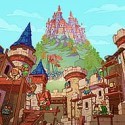

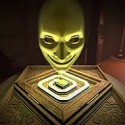
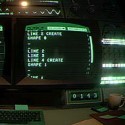



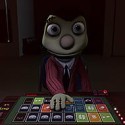

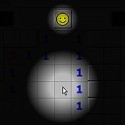




What does your desktop actually do while you are busy doing something else? For most people the answer is nothing, a still image sitting behind a row of icons. Wallpaper Engine changes that by letting a looping video, a reactive 3D scene or even a small web page run behind your windows, and the Steam Workshop supplies a library large enough that most people never finish browsing it.
| Genre | Desktop customization software |
| Wallpaper types | Scene, Video, Web, Application |
| Content source | Steam Workshop and the built-in Wallpaper Editor |
| Display support | Single or multiple monitors |
| Platform | PC (Windows) |
Four Wallpaper Types Inside Wallpaper Engine
The whole system rests on four wallpaper types, and knowing which one you are looking at tells you most of what to expect from it. Each one behaves differently on your hardware and in how much you can change it. Newcomers often subscribe to dozens of wallpapers without noticing that the type changes how heavy each one is.
- Scene wallpapers are layered 2D or 3D compositions with effects, and they can react to your cursor or to audio.
- Video wallpapers are looping clips, the simplest type and usually the lightest on your system.
- Web wallpapers run as small web pages, which is how clocks, dashboards and tiny interactive toys end up on a desktop.
- Application wallpapers run actual programs behind your icons, which makes them the most unpredictable of the four.
Scene wallpapers are the ones people mean when they say live wallpaper with personality. Audio visualizer scenes that pulse with whatever music you are playing are probably the most recognizable of them. Fans of rhythm and music setups tend to start here.
Browsing the Steam Workshop Without Drowning
The Workshop is where the real value lives, and it is also where beginners get lost. Subscribing is one click, so it is easy to end up with hundreds of wallpapers you never use. Sorting by popularity or trending and filtering by tag is a far better way to start than scrolling the front page.
The community leans heavily on anime scenes, cozy rooms, game-inspired art and minimalist loops, so the vocabulary you see in comments is about vibes more than specs. People talk about setups, rice-style desktops and clean looks the way other players talk about builds. If you want something that matches a favorite game, searching its name usually finds fan-made scenes within a few results.
There is a divisive side too. Workshop content is user-made, quality varies wildly, and mature material exists, so the content filters are worth setting up early. Some people also find the sheer volume overwhelming rather than exciting.
Performance Settings That Protect Your Frame Rate
The biggest worry players have is whether a moving desktop will hurt a game they are running, and the software has a clear answer built in. Pause rules let the wallpaper stop when another application is focused or running fullscreen. That means the animation costs almost nothing while a game is on screen and picks up again when you return to the desktop.
Quality sliders matter as well. You can lower the playback frame rate and the resolution scale, which is the quickest fix for a laptop that runs warm or a GPU that is already working hard. A heavy 3D scene with many effects costs far more than a video loop, so match the wallpaper type to your machine.
The honest limit is that some Workshop scenes are poorly optimized, and borderless windowed games do not always trigger the pause rules the way exclusive fullscreen does. Competitive players who care about every frame often stick to video wallpapers or lower the settings, and that debate never really ends in the community.
Making Your Own in the Wallpaper Editor
The built-in Wallpaper Editor is what separates this program from a simple wallpaper changer. You can import images, split them into layers, add effects and make parts of the scene react to the cursor or to sound. Puppet warp lets you bend a flat illustration so it sways like it is alive, which is how many popular scenes get their movement.
Beginners usually start by taking one favorite image and adding a single effect, such as drifting particles or a gentle water ripple. That small step teaches more about layers than any tutorial does. Artists who already draw digital work will find the jump to animated wallpapers surprisingly short.
Finished work can be published to the Workshop, where other users can subscribe and rate it. This loop is why the library keeps growing and why the same program serves casual users and serious creators at the same time.
Playlists, Multiple Monitors and Daily Rotation
Playlists turn the software from a single wallpaper into a rotation. You group wallpapers together and let them switch on a timer, which suits people who get bored of one look quickly. A morning playlist with calm scenes and an evening one with darker visuals is a common setup.
Multiple monitors are handled well. You can give each screen its own wallpaper or stretch one wide scene across all of them. Ultrawide owners often pick a single panoramic scene, while people with mismatched displays prefer separate wallpapers for each one.
Once you are past the first week, the main skill is curation. Keep a small set of favorites, remove the heavy ones and let the software do the rest. That restraint keeps the desktop smooth and your collection easy to manage.
Questions Wallpaper Engine Users Keep Asking
Does Wallpaper Engine slow down games?
It can, but the pause rules are designed to prevent that. When a game runs fullscreen the wallpaper stops rendering, so the cost drops to almost nothing. If you play in borderless windowed mode, lower the playback frame rate or choose a video wallpaper instead of a heavy scene.
How do I make my own wallpaper?
Open the Wallpaper Editor and create a scene from an image or a set of layers. Add effects such as cursor reactions or audio response, then use puppet warp for movement. When it looks right, publish it to the Workshop so others can subscribe.
Can Wallpaper Engine run on more than one monitor?
Yes. You can assign a separate wallpaper to each display or stretch a single wide wallpaper across all of them. Playlists also work per display, so each screen can rotate on its own timer.
Wallpaper Engine is at its best when you treat the Workshop as a shelf rather than a warehouse, pick a few scenes that suit your setup and tune the pause rules so your frame rate stays safe. Start with one video loop, try the Wallpaper Editor once you feel curious, and the desktop stops being the part of your PC you never look at.
Comments
There are no reviews yet. Be the first one to write one.